Deploy
Environments
Run production, staging and experiments of the same project, each from its own git branch with its own variables, databases and URLs.
On this page
What an environment is#
An environment is a copy of a project that runs on its own. Production is the project you already have. Staging is a second copy that builds from a staging branch. An experiment is a third that builds from whatever branch you are trying out.
Each environment has its own units, variables, secrets, databases, buckets, volumes, deployments and public addresses. Nothing is shared by accident: staging's database is not production's, and a bad push to staging cannot reach production's data.
| Production | Staging | |
|---|---|---|
| Branch | main | staging |
Address of web | proxima.kiprsh.app | proxima-staging.kiprsh.app |
Database main | Its own, with your real data | A new, empty one |
| Secrets | The ones you set | Copied from production, then yours to change |
An environment is also a project of its own, with the slug <project>-<environment>. Everything that takes a project takes it.
kuiper units -p proxima-stagingCreate one#
Open the environment switcher beside the project name, choose New environment…, and fill in the dialog.
| Field | What it does |
|---|---|
| Name | Lowercase letters, digits and dashes, such as staging or preview-2. production is taken by the project itself. |
| Copy from | The environment to copy. Production, unless you copy staging into a preview. |
| Branch | The branch the new environment's units build from. When GitHub is connected the list shows the repository's branches, and picks the one named like the environment if there is one. Leave it as it is to keep the source's branches. |
| Copy secrets | On by default. Turn it off to give the environment the names of its secrets and no values. |
| Deploy now | On by default. Builds start on the branch, and units that run an image get what the source runs. |
From the CLI:
kuiper environments create staging --branch staging
kuiper environments create preview --from staging --branch feature/payments
kuiper environments create qa --no-secrets --no-deploy
Kuiper copies the definition of the source, in one step: either all of it is created or none is.
| Copied | Not copied |
|---|---|
| Units, with their kind, resources, placement and build settings. | Deployments and their history. |
| Repository links, on the new branch. | Database contents and bucket objects. |
| Variables, as templates. | Volume data. |
| Secrets, shared values and external resources. | Custom domains. |
| Private registry credentials. | API tokens. |
| The project's region and auto-restart setting. |
Databases and buckets are created new and empty, with their own passwords and keys, the way kuiper db create makes them. Their definitions come across, their data does not.
Public addresses are <address>-<environment>.kiprsh.app, so proxima.kiprsh.app becomes proxima-staging.kiprsh.app.
After the dashboard creates an environment it takes you to its Deployments page, where the builds appear as they start. A unit that cannot start yet says why. The usual reason is a secret that was left out, and Kuiper names it.
Work in an environment#
The switcher shows where you are. Production is plain text. Any other environment is highlighted, and a thin line runs along the top of the page, so staging is never mistaken for production. Switching keeps you on the same page: the same unit, the same tab, the same settings.
Every CLI command that takes a project takes an environment too.
kuiper units -p proxima -e staging
kuiper env set -p proxima --environment staging -u web LOG_LEVEL=debug
kuiper logs -p proxima -e staging -u web
To work in one for a while, remember it with the project, or set it for the shell.
kuiper use proxima -e staging
kuiper units
KUIPER_ENVIRONMENT=staging kuiper logs -u web
A project slug such as proxima-staging keeps working as it is. kuiper use proxima goes back to production. An environment remembered by kuiper use belongs to that project: -p other does not inherit it.
To list them:
kuiper environments list
kuiper projects list
kuiper projects list shows one row per project with its environments, and --all shows a row for each environment. In the dashboard the projects page has one card per project, with a chip for each environment.
The API#
Everywhere a project goes in a path, an environment goes after an @: /v1/projects/proxima@staging/units. proxima can be any project of the family, and staging is the environment to land on. GET /v1/projects/proxima/environments lists them, with their branch and status.
Push to deploy#
Linking a unit to a repository makes every push to its branch build and deploy it. Environments use this to follow different branches of the same repository: a push to staging builds staging's units and nothing of production's, and a push to main builds production's.
kuiper link -p proxima -e staging -u web --repo https://github.com/acme/proximaA unit linked in an environment that was given a branch builds that branch unless you pass --branch.
You do not set up anything new on GitHub. With the Kuiper GitHub App, pushes already reach every project of your organisation. With a token or a manual webhook, the webhook you already have for a unit also delivers the pushes for its copies, because an environment's repository link shares the webhook secret of the link it was copied from.
Compare and sync#
Over time environments drift: a variable added in production, a setting changed in staging. kuiper environments diff shows what differs between two environments, and sync brings the differences you choose across.
kuiper environments diff staging
kuiper environments diff preview --from staging
kuiper environments sync staging
The diff is from the point of view of the environment you name: + is in the source and not there, ~ differs, - is only there. It covers units, variables as templates, secret names, shared values, external resources, databases and buckets. It never shows a secret value.
In the dashboard, open Settings, find the environment under Environments and press Sync. Tick what to bring across and press Apply.
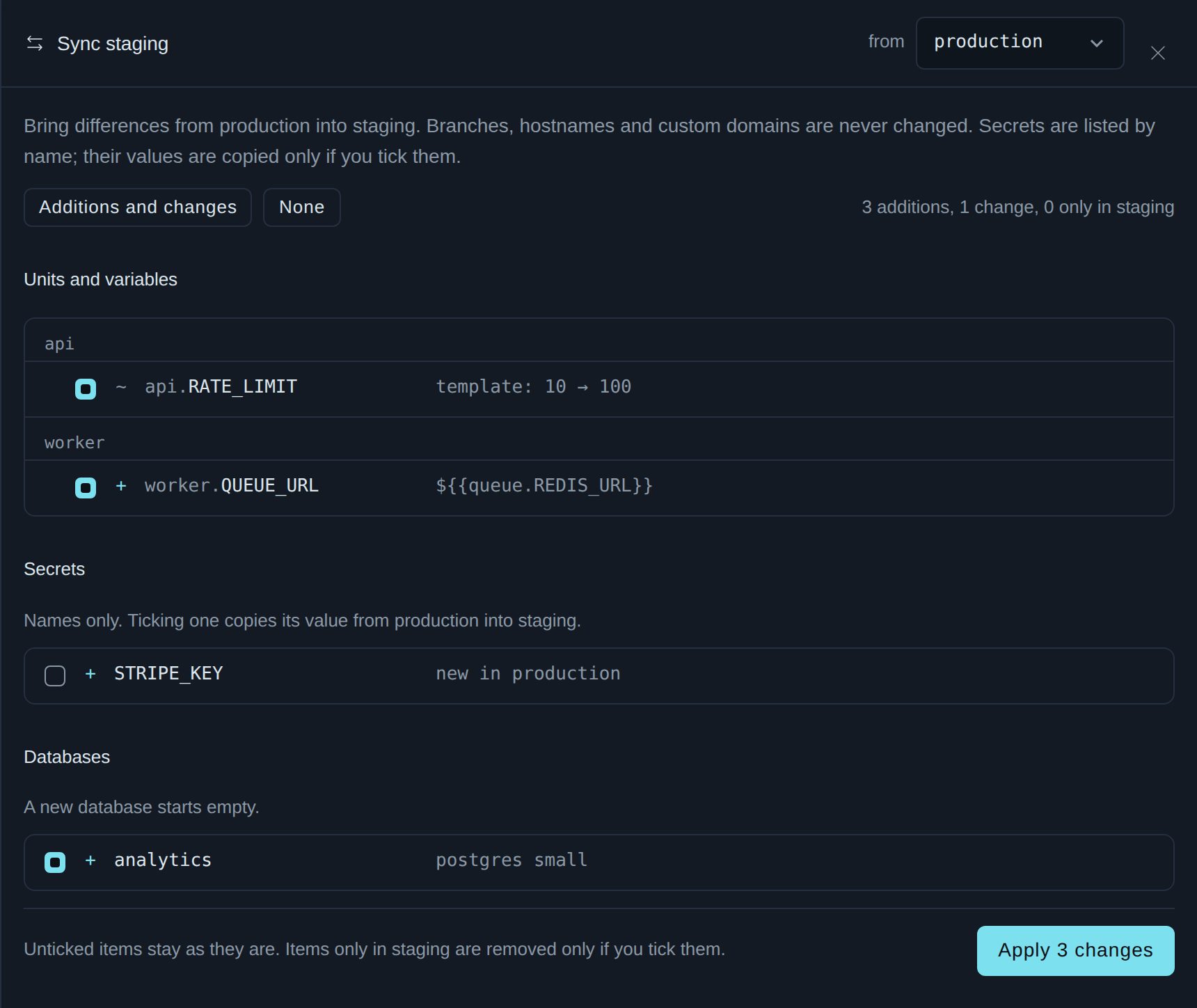
sync adds and changes everything, except what has to be asked for:
| Item | How |
|---|---|
| Secret values | --secrets, or name one with --include secret:NAME. |
| Things only in the target | --prune. Without it nothing is removed. |
| Only some changes | --include variable:web/LOG_LEVEL,unit:worker, using the keys the diff prints with --json. |
A sync never changes the target's branch, its addresses or its custom domains, and it never resizes or deletes a database or a bucket. An item that cannot be applied, such as a variable that points at a database the target does not have, is reported and skipped, and the rest go through.
After a sync Kuiper lists the units that need a redeploy. A changed variable needs a restart. A changed repository or setting needs a new build.
Delete#
kuiper environments delete previewThis stops the environment's units and deletes its databases and their data, its variables, secrets, volumes and history. It asks first, and --yes skips the question. The dashboard names what will be destroyed and asks you to type the environment's name. Production and the other environments are not touched.
Buckets have to be emptied and deleted first, as for any project. Production cannot be deleted this way: it is the project, and kuiper projects delete removes it. A project with environments is not deleted until you say so, with --with-environments.
Who can do what#
Environments follow the project. Anyone who can use the project can use its environments, and the same API tokens work for all of them, because tokens belong to the organisation, not to a project. See teams, roles and tokens.
Next#
Every command is in the CLI reference. To give an environment its own secrets, see variables and secrets.